Managing Portfolios in Katbot
Katbot allows you to manage multiple portfolios, enabling you to organize your investments effectively. This guide will walk you through the process of creating, viewing, and managing portfolios within Katbot.
Understanding Portfolios
A portfolio in Katbot represents a collection of trades and positions that you manage together. Each portfolio can have its own trading strategy, risk parameters, and performance metrics as well as a list of supported tokens. This allows you to diversify your trading approaches and track the performance of different strategies separately.
There are three types of portfolios in Katbot:
| Type | Description | Real funds? |
|---|---|---|
| Paper Trading | Simulated trading using Katbot's built-in Hyperliquid simulator. Uses Kraken market data. | No |
| Hyperliquid Testnet | Live trading on Hyperliquid's testnet environment. Use the faucet to get free test USDC. | No |
| Hyperliquid Mainnet | Live trading on Hyperliquid's mainnet with real capital on Arbitrum. | Yes |
This guide focuses on creating and managing paper trading portfolios. For live trading setup, review the Hyperliquid guide and ensure you have a paid subscription.
Creating a New Portfolio (paper trading)
To create a new portfolio in Katbot, follow these steps:
- Log in to your Katbot account.
- Navigate to the "Dashboard" and look in the upper right section from the main dashboard.
- Click on the "+Create" button.
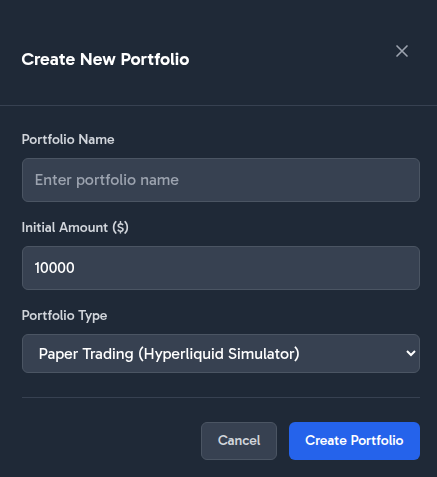
- A dialog will appear prompting you to enter a name for your new portfolio and the Initial investment amount. Enter a descriptive name that helps you identify the portfolio easily.
- Click "Create Portfolio" to finalize the creation of your new portfolio.
Creating a Portfolio Screenshot:
Managing Your Portfolio
After creating a portfolio, you can manage it by accessing the portfolio dashboard. Here, you can view portfolio performance, open positions, and trade history.
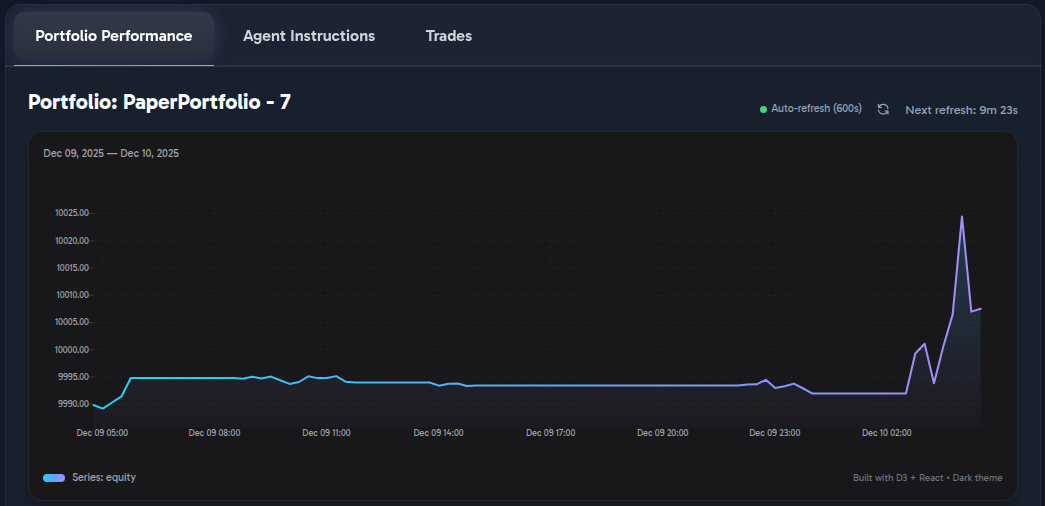
Portfolio Performance Chart
The performance chart provides a visual representation of your portfolio's value over time, allowing you to track gains and losses effectively.
P&L Calculation
For perpetual positions, P&L is calculated as:
- Long position:
(exit_price - entry_price) / entry_price * 100 - Short position:
(entry_price - exit_price) / entry_price * 100
This is the percentage return on the position, before fees. The portfolio performance chart tracks cumulative P&L across all closed positions.
Tokens Supported For Trading in Portfolios
Katbot supports a dynamic list of 90+ tokens sourced from the intersection of Hyperliquid's live perpetuals universe and Kraken's supported spot pairs. This includes BTC, ETH, SOL, XRP, ADA, AVAX, DOT, LINK, MATIC, ATOM, UNI, AAVE, ARB, OP, and many more.
The number of tokens you can actively select for a portfolio depends on your subscription tier:
| Plan | Max tokens per portfolio |
|---|---|
| FREE | 3 |
| STARTER | 5 |
| TRADER | 7 |
| PRO | 10 |
You manage which tokens are active for AI recommendations in the portfolio's token selection panel. The AI agent only analyses and recommends trades for your selected tokens.
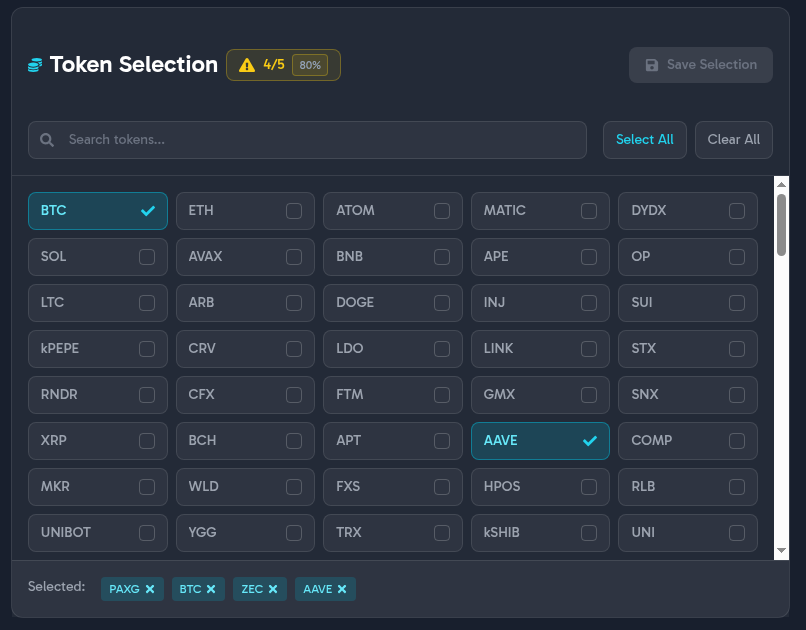
The reason that tokens are limited is because the agent actually does research on all the provided tokens before making recommendations. Having a limited list of tokens allows the agent to be more effective at researching and making recommendations on those tokens based on available models for a plan.
To increase the number of tokens available for trading upgrade your plan, this will permit you to use more powerful models which can research more tokens effectively.
If there is a token that you would like to see added, please contact our support team or join our Discord community to request it.
Portfolio Open Positions
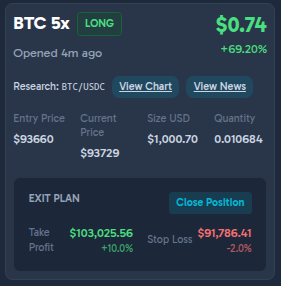
The open positions section displays all active trades in your portfolio, including details such as entry price, current price, take-profit, stop-loss, position size, leverage, and unrealized P&L.
Leverage
Leverage limits are set per token by Hyperliquid and vary by symbol. For most major tokens the platform applies a practical maximum of 10x leverage. Leverage is suggested by the AI agent as part of each recommendation and can be adjusted before execution. Always consider your risk tolerance — higher leverage amplifies both gains and losses.
Exit Plan Panel
Each trade can have an exit plan with:
- Take-profit — a price level or percentage gain at which the position is automatically closed for profit
- Stop-loss — a price level or percentage loss at which the position is automatically closed to limit losses
Exit plans are required for live trading. The AI agent includes suggested take-profit and stop-loss levels in its recommendations, but you can modify them before executing.
Open Position UI Summary
This screen presents a single leveraged position using a card-based layout designed for quick status review and trade management.
Header / Position Identity
* Displays the asset and leverage (BTC 5×) with a clear LONG/SHORT status badge.
* Shows unrealized P&L prominently in USD, followed by percentage gain.
* Includes a timestamp indicating when the position was opened (relative time).
Research Shortcuts * Provides inline action buttons labeled View Chart and View News, scoped to the trading pair (BTC/USDC), allowing quick contextual analysis without leaving the position view. Links use TradingView.com for position info and news.
Position Details Section * Structured as labeled fields for clarity:
- Entry Price
- Current Price
- Position Size (USD)
- Quantity
- Values are aligned and grouped to emphasize price vs sizing information.
Exit Plan Panel
- Clearly separated with its own heading to distinguish risk management controls.
-
Displays:
-
Take Profit level with both target price and percentage move.
- Stop Loss level with price and downside percentage.
- Color usage differentiates favorable (profit) vs risk (loss) thresholds.
- Includes a primary Close Position button for manual exit.
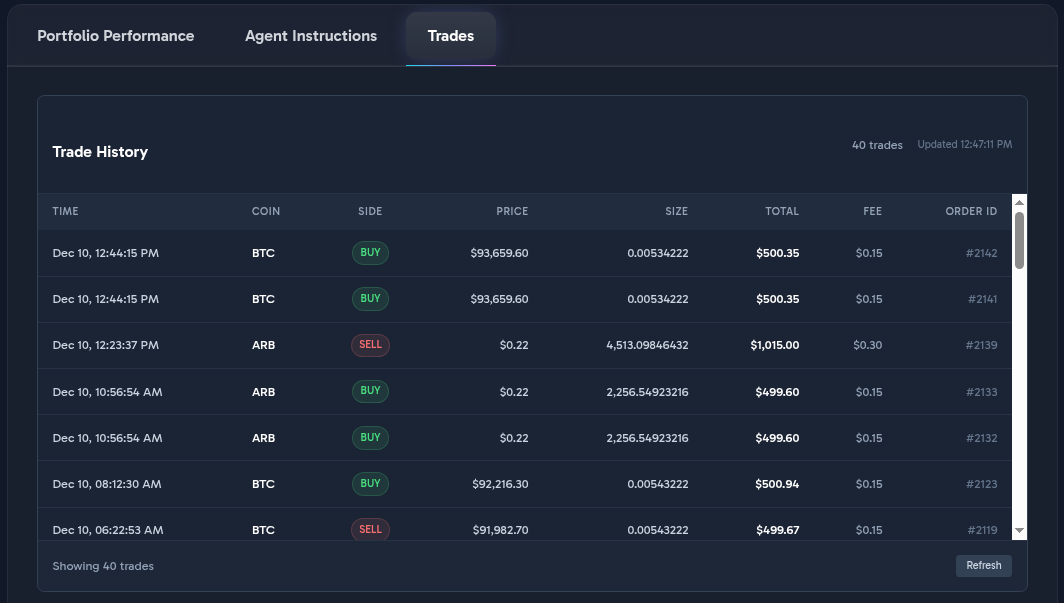
Trades History
The trades history section lists all completed trades in your portfolio, providing insights into your trading activity and performance.
Assigned Agents
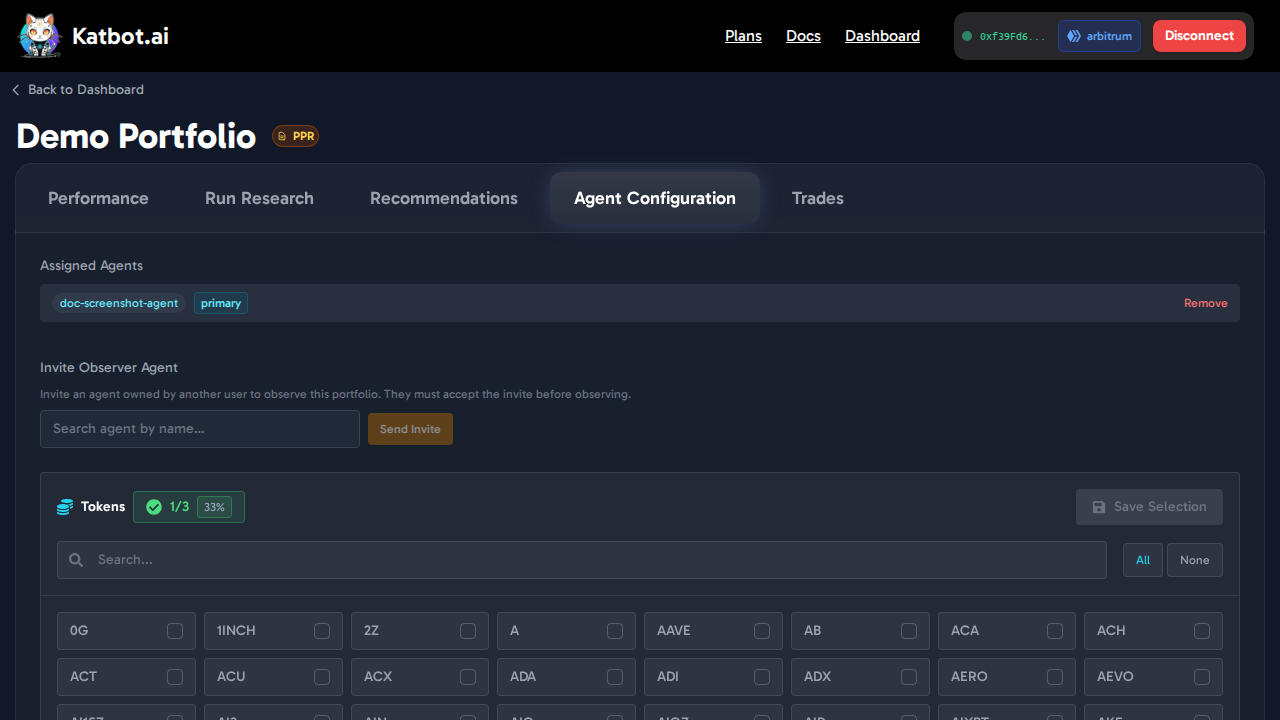
Each portfolio requires an agent to generate recommendations and execute trades. You assign agents to portfolios from the Portfolio Settings page.
- Primary Agent: Executes trades and makes recommendations for this portfolio. Only one primary agent is allowed per portfolio.
- Observer Agents: Generate recommendations but do not execute trades. Multiple observers are allowed.
To assign an agent, open Portfolio Settings → "Assigned Agents" section. If you haven't created an agent yet, go to the Dashboard and create one first.
See the Agents guide for full details on creating and managing agents.
Note: Agent instructions (system prompts) and model selection are now managed on the Agent itself, not the Portfolio. See the Agents guide for details.
Research Tab
Each portfolio includes a Research tab for running AI-driven token discovery and viewing results.
- Run Research: Triggers a research run using the active config from the portfolio's primary agent. The Agent Identity Card at the top shows which agent and config are in use. If no agent is assigned or the agent has no active research config, you'll be directed to the Agent Detail Page to configure one.
- Results: Past research runs and proposed token sets, with options to view detail or delete.
Applying a research result replaces the portfolio's current token list. Your assigned agent then draws from that token set when generating recommendations.
Note: Research configurations (bucket, methodology prompt, model) are managed on the Agent Detail Page → Research Configs tab, not on the portfolio. See Agents → Research Configs and the Research guide.