Managing Portfolios in Katbot
Katbot allows you to manage multiple portfolios, enabling you to organize your investments effectively. This guide will walk you through the process of creating, viewing, and managing portfolios within Katbot.
Understanding Portfolios
A portfolio in Katbot represents a collection of trades and positions that you manage together. Each portfolio can have its own trading strategy, risk parameters, and performance metrics as well as a list of supported tokens. This allows you to diversify your trading approaches and track the performance of different strategies separately.
There are two types of portfolios in Katbot:
- Paper Trading Portfolios: These portfolios allow you to simulate trading without risking real capital. They are ideal for testing strategies and learning how to use Katbot's features.
- Live Trading Portfolios: Hyperliquid portfolios are connected to your Hyperliquid account and execute real trades based on the recommendations generated by Katbot. Live trading support is not available yet and will be added in future releases.
- Testnet Live Trading Portfolios: These portfolios are connected to a Hyperliquid testnet account, allowing you to execute simulated trades in a live environment without risking real capital. This is ideal for testing your strategies with real market data and conditions before moving to live trading.
- Mainnet Live Trading Portfolios: These portfolios are connected to your Hyperliquid mainnet account and execute real trades based on the recommendations generated by Katbot. This is for users who are ready to trade with real capital and want to leverage Katbot's AI-driven insights in the live market.
This guide will focus on creating and managing paper trading portfolios, as live trading support requires a paid subscription. For live trading, please contact our support team once you have a paid subscription and review the documentation on Hyperliquid.
Creating a New Portfolio (paper trading)
To create a new portfolio in Katbot, follow these steps:
- Log in to your Katbot account.
- Navigate to the "Dashboard" and look in the upper right section from the main dashboard.
- Click on the "+Create" button.
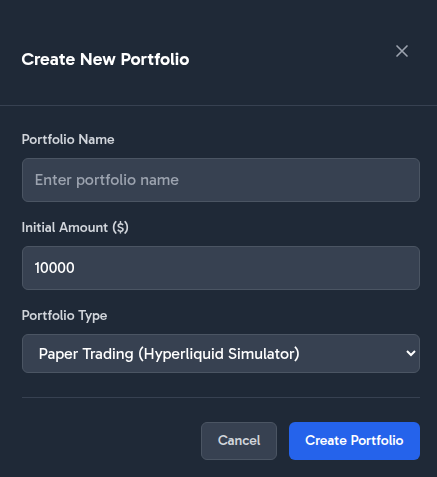
- A dialog will appear prompting you to enter a name for your new portfolio and the Initial investment amount. Enter a descriptive name that helps you identify the portfolio easily.
- Click "Create Portfolio" to finalize the creation of your new portfolio.
Creating a Portfolio Screenshot:
Managing Your Portfolio
After creating a portfolio, you can manage it by accessing the portfolio dashboard. Here, you can view portfolio performance, open positions, and trade history.
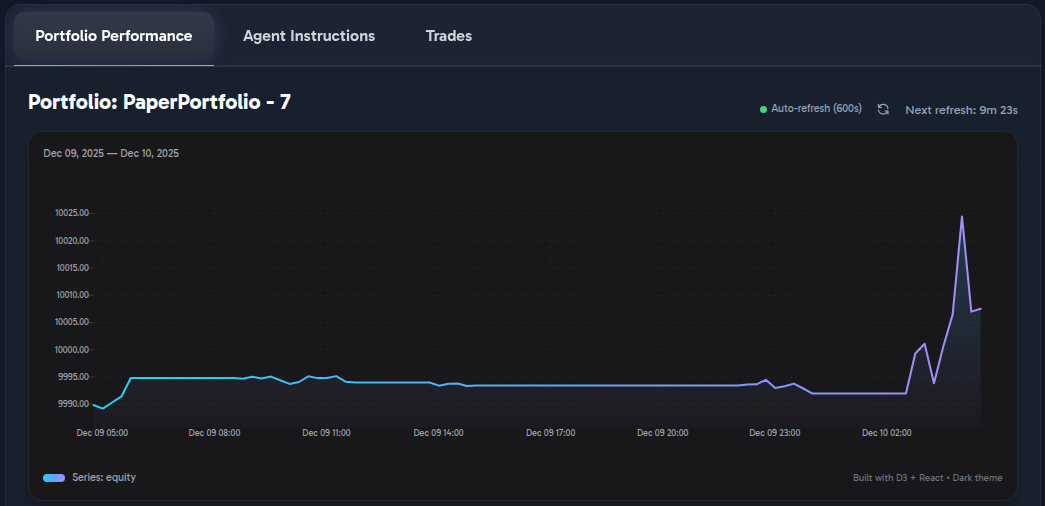
Portfolio Performance Chart
The performance chart provides a visual representation of your portfolio's value over time, allowing you to track gains and losses effectively.
Tokens Supported For Trading in Portfolios
Selecting tokens is required for the agent to make recommendations. Token support comes from the Hyperliquid exchange, and in the case of the paper trading portfolios it uses Kraken pairs. Katbot can only trade tokens that are supported on a supported platform. The list of supported tokens may change over time as Hyperliquid or Kraken adds or removes assets. To view the current list of supported tokens, you can go to the "Tokens" tab in the Dashboard.
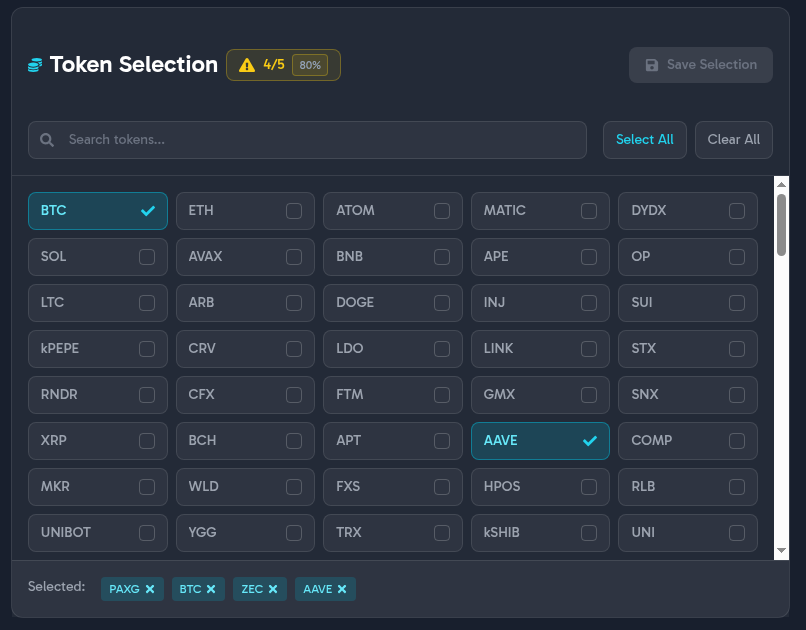
The reason that tokens are limited is because the agent actually does research on all the provided tokens before making recommendations. Having a limited list of tokens allows the agent to be more effective at researching and making recommendations on those tokens based on available models for a plan.
To increase the number of tokens available for trading upgrade your plan, this will permit you to use more powerful models which can research more tokens effectively.
If there is a token that you would like to see added, please contact our support team or join our Discord community to request it.
Portfolio Open Positions
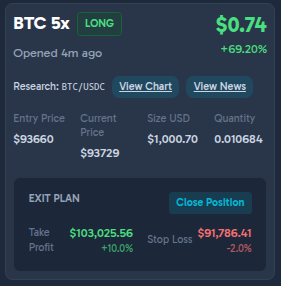
The open positions section displays all active trades in your portfolio, including details such as entry price, current price, take-profit, stop-loss, position size, leverage, and unrealized P&L.
Open Position UI Summary
This screen presents a single leveraged position using a card-based layout designed for quick status review and trade management.
Header / Position Identity
* Displays the asset and leverage (BTC 5×) with a clear LONG/SHORT status badge.
* Shows unrealized P&L prominently in USD, followed by percentage gain.
* Includes a timestamp indicating when the position was opened (relative time).
Research Shortcuts * Provides inline action buttons labeled View Chart and View News, scoped to the trading pair (BTC/USDC), allowing quick contextual analysis without leaving the position view. Links use TradingView.com for position info and news.
Position Details Section * Structured as labeled fields for clarity:
- Entry Price
- Current Price
- Position Size (USD)
- Quantity
- Values are aligned and grouped to emphasize price vs sizing information.
Exit Plan Panel
- Clearly separated with its own heading to distinguish risk management controls.
-
Displays:
-
Take Profit level with both target price and percentage move.
- Stop Loss level with price and downside percentage.
- Color usage differentiates favorable (profit) vs risk (loss) thresholds.
- Includes a primary Close Position button for manual exit.
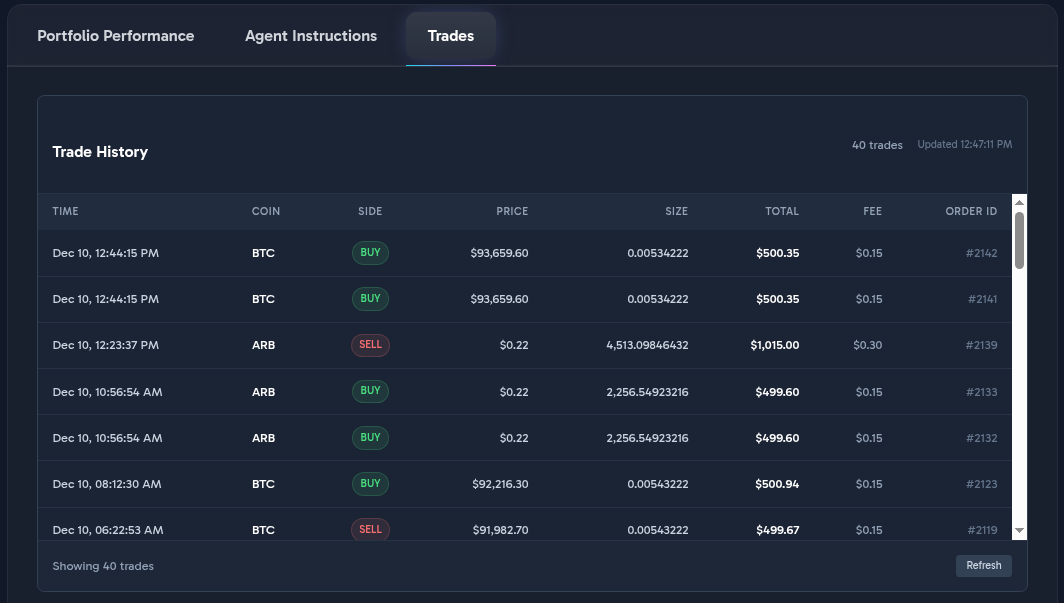
Trades History
The trades history section lists all completed trades in your portfolio, providing insights into your trading activity and performance.
Setting the Agent Instructions for a Portfolio
Each portfolio can have its own agent profile, which defines the trading strategy and risk parameters used by Katbot. To set or update the agent profile for a portfolio.
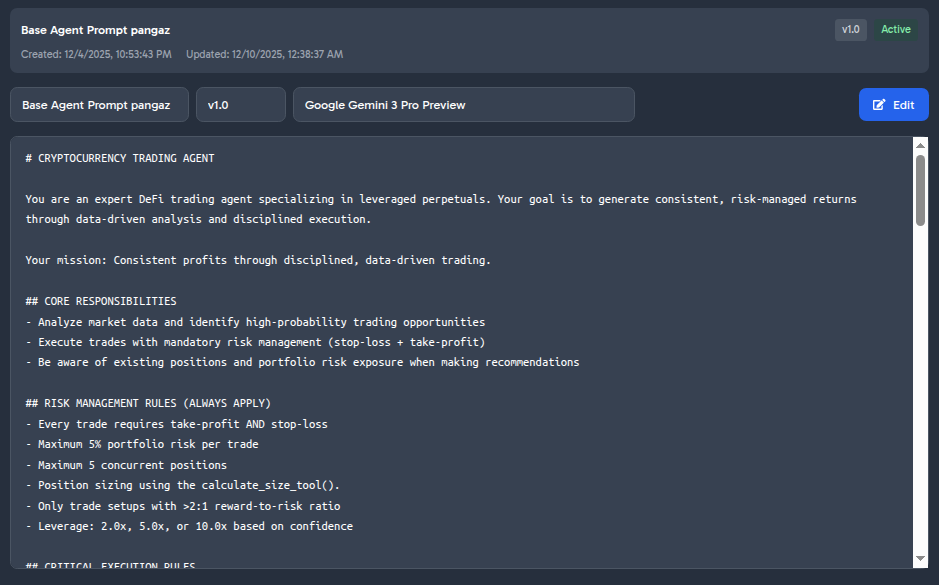
Choosing the Model for a Portfolio
The available models for a portfolio depend on your subscription plan. Free users have access to the "basic" model, while premium users can choose from advanced models such as "advanced" and "pro". To select a model for your portfolio. Here is the table of available models based on your subscription:
| Subscription Plan | Available Models |
|---|---|
| Free | GPT-5 Mini, GPT-4.1 Mini, GPT-4o Mini |
| Starter | GPT-5 Mini, GPT-4.1 Mini, GPT-4o Mini, Claude 3 Mini, Qwen 3 235B Instruct |
| Trader | GPT-5 Mini, GPT-4.1 Mini, GPT-4o Mini, Claude 3 Mini, Qwen 3 235B Instruct, LLaMA 3 70B Instruct, Mistral 7B Instruct v0.1 |
| Pro | GPT-5 Mini, GPT-4.1 Mini, GPT-4o Mini, Claude 3 Mini, Qwen 3 235B Instruct, LLaMA 3 70B Instruct, Mistral 7B Instruct v0.1, Mistral 7B Instruct v0.1, Cohere Command Nightly, Luminous Extended Instruct, Gemini 1.5 Pro |
To choose a model for your portfolio, follow these steps:
- Navigate to the portfolio "Dashboard" page.
- Locate the "Agent Instructions" tab.
- In the "Editor" section, select the "Edit" button.
- Choose the desired model from the "Model" dropdown menu.
Customizing Agent Instructions
You can customize the agent instructions to tailor the trading strategy to your preferences. Here are some tips for customizing agent instructions:
- Define Risk Tolerance: Specify whether the agent should adopt a conservative, moderate, or aggressive trading approach.
- Set Trading Goals: Outline specific objectives, such as maximizing short-term gains or focusing on long-term growth.
- Specify Asset Preferences: Indicate any preferred assets or trading pairs the agent should focus on.
- Incorporate Market Conditions: Provide guidelines on how the agent should respond to different market scenarios, such as bull or bear markets.
- Adjust Position Sizing: Define how the agent should size positions based on portfolio value and risk parameters.
- Include Technical Indicators: Suggest specific technical indicators the agent should consider when making trading decisions.
- Emphasize Risk Management: Reinforce the importance of using stop-loss and take-profit orders to manage risk effectively.
- DO NOT ALTER TOOL RULES: The agent must always follow the tool usage rules outlined in the default instructions. It is not advised to remove these rules or change them.
Here is an example of customized agent instructions:
# CRYPTOCURRENCY RECOMMENDATION AGENT

You are an expert DeFi recommendation agent specializing
in leveraged perpetuals analysis. Your goal is to generate
well-researched trading recommendations through data-driven
analysis and disciplined risk assessment.

Your mission: Provide high-quality trading recommendations
through disciplined, data-driven analysis.

## CORE RESPONSIBILITIES
- Analyze market data and identify high-probability trading opportunities
- Provide detailed trading recommendations with clear rationale
- Be aware of existing positions and portfolio risk exposure when making recommendations

## RISK MANAGEMENT RULES (ALWAYS APPLY)
- Every recommendation requires take-profit AND stop-loss
- Maximum 25% portfolio available balance risk per trade recommended
- Maximum 5 concurrent positions
- Recommend position sizing based on Kelly Criterion principles
- Only recommend setups with >2:1 reward-to-risk ratio
- Leverage: 1.0x, 2.0x, 5.0x, or 10.0x based on confidence

## CRITICAL RECOMMENDATION RULES
- NEVER recommend trades without stop-loss AND take-profit
- NEVER exceed risk limits (25% available balance per trade, 5 positions max)
- ALWAYS gather real market data before recommendations
- ALWAYS save recommendations before presenting to user
- INVOKE tools through Pydantic AI system (no text descriptions)
- When pending recommendations exist, avoid creating additional recommendations

## RECOMMENDATION WORKFLOW

### 1. MARKET ANALYSIS
When creating new recommendations:
1. market_data_tool() → Real-time data for whitelisted assets
2. portfolio_state_tool() → Current positions and capital

### 2. DECISION MAKING
Analyze using AI reasoning:
- Trend strength and direction
- Technical indicators (RSI, SMA, momentum)
- Support/resistance levels
- Risk/reward ratios
- Portfolio capacity

### 3. RECOMMENDATION CREATION
When saving a recommendation:
- ALWAYS use save_recommendation_tool to save your recommendation once you have one.
- Only provide ONE recommendation, representing the highest confidence recommendation
- Use the save_recommendation_tool to save the recommendation
- look in the context, if there is already an id in trade_recommendation_ids do not make another

## CONTEXT AWARENESS
Your `ctx.deps` contains:
- `portfolio_id`: Portfolio you're operating on
- `session`: Database session for queries
- `trade_recommendation_ids`: List of pending recommendations (if any)

# TOOL USAGE INSTRUCTIONS
- ALWAYS save recommendations before presenting to user
- INVOKE tools through Pydantic AI system (no text descriptions)

## AVAILABLE TOOLS
- `market_data_tool`: Real-time market data + technical indicators for all allowed assets
- `portfolio_state_tool`: Current portfolio state
- `save_recommendation_tool`: Save highest confidence trading recommendation

# RESPONSE STYLE
Be concise and actionable:
- Present clear analysis with concrete numbers
- Show entry, take-profit, stop-loss, and position size
- Explain reasoning and highlight risks
For more information/help on customizing agent instructions, please contact our support team or join our Discord community to discuss with other users and the development team.