Enabling Hyperliquid Portfolios
Katbot's live trading integration with Hyperliquid allows users to create and manage portfolios that execute leveraged perpetual trades on the Hyperliquid exchange in both Testnet and Mainnet. This guide covers how to set up and use Hyperliquid portfolios within the Katbot platform.
NOTE: Live trading support is a paid feature and it is recommended that you contact our support team for help when starting. This guide provides an overview of how Hyperliquid integration works when live trading is enabled.
WARNING: Live trading involves risk. Please ensure you understand the risks before enabling live trading. Katbot is not responsible for any losses incurred through live trading for any reason. Review the terms and conditions carefully before proceeding..
How Hyperliquid Integration Works
When you create a Hyperliquid portfolio in Katbot, you will connect your Hyperliquid account to the portfolio using an "Agent Private Key" which Katbot will provide. This is called API Agent or Sub-Account workflow. This allows Katbot to access real-time market data and execute trades on your behalf based on the recommendations generated by the AI agent without actually using your Metamask Private Key.
The user must add the "Agent Address" to their Hyperliquid account under the API tab in Hyperliquid as a "API Wallet" with trading permissions. This allows Katbot to execute trades on the user's behalf while keeping the user's main account secure.
- User creates a Hyperliquid portfolio in Katbot and receives an "Agent Private Key" and "Agent Address".
- User is provided with instructions to add the "Agent Address" to their Hyperliquid account as an "API Wallet" with trading permissions.
- User adds the "Agent Address" to their Hyperliquid account as an "API Wallet" with trading permissions.
- Katbot uses the "Agent Private Key" to authenticate and connect to the Hyperliquid API.
Creating a Hyperliquid Portfolio
To create a Hyperliquid portfolio in Katbot, follow these steps:
- Log in to your Katbot account.
- Navigate to the "Portfolios" section.
- Click "Create Portfolio".
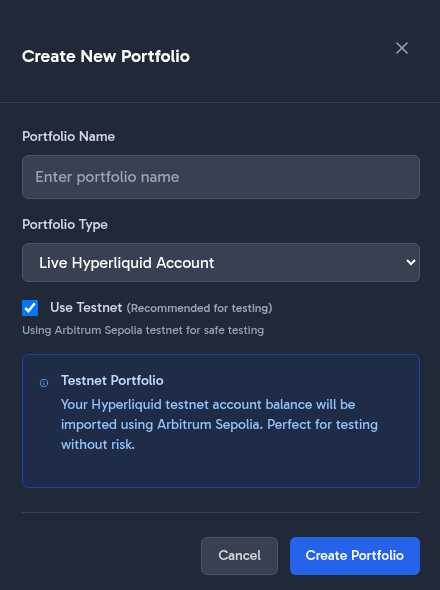
- Select "Live Hyperliquid Account" as the portfolio type.
- Choose "Testnet" or "Mainnet" for the environment.
- Once the portfolio is created, you will receive an "Agent Private Key" and "Agent Address". Keep the "Agent Private Key" secure and do not share it with anyone.
The difference between Testnet and Mainnet Hyperliquid portfolios is that Testnet portfolios will execute trades on the Hyperliquid testnet environment, allowing you to simulate trading without risking real capital. Mainnet portfolios will execute real trades on the Hyperliquid mainnet environment using real capital.
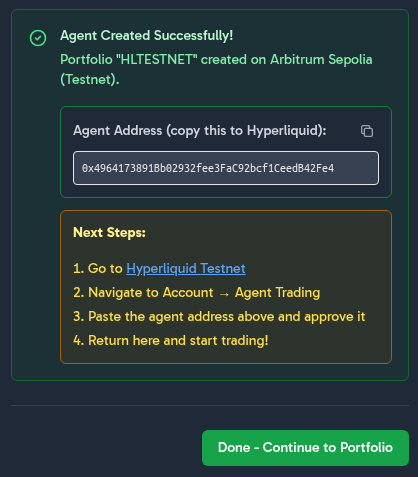
Katbot Provides a Agent Address and Private Key for Hyperliquid Integration
When you create a Hyperliquid portfolio, Katbot will generate an "Agent Address" and "Agent Private Key" for you. The "Agent Address" is the public address that you will add to your Hyperliquid account as an "API Wallet". The "Agent Private Key" is used by Katbot to authenticate and connect to the Hyperliquid API.
Adding The Agent Address to Hyperliquid
To enable Hyperliquid integration, you will need to add the "Agent Address" provided by Katbot to your Hyperliquid account as an "API Wallet". Follow these steps:
- Using the "Agent Address" provided by Katbot, log in to your Hyperliquid account (testnet or mainnet).
- Navigate to the "API" section in your Hyperliquid account settings.
- In the Address field, enter the "Agent Address" provided by Katbot.
- In the name field, you can enter a name for the API Wallet (e.g., "Katbot API Wallet").
- Set the expiration for the API Wallet to allow trading (180 days).
- Approve the API Wallet with trading period. This will allow Katbot to execute trades on your behalf using the Hyperliquid API.
- Confirm the Metamask transaction to add the API Wallet to your Hyperliquid account.
and then authorize the API Wallet with trading permissions.
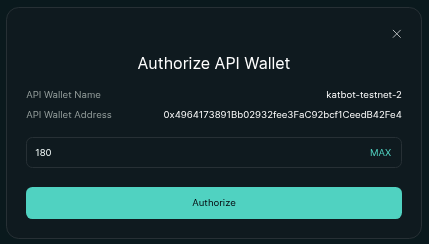
an the Metamask transaction to confirm.
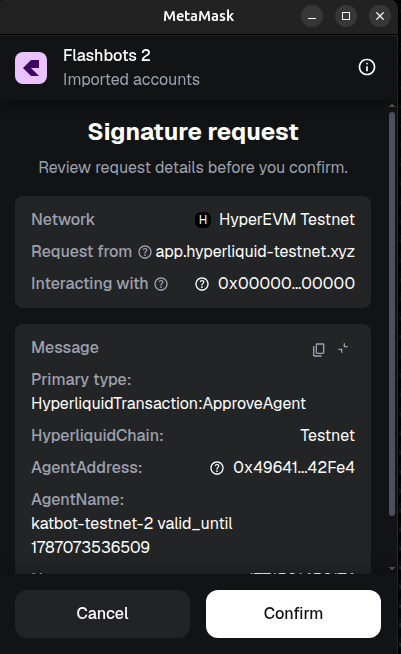
You should see the API Wallet added to your Hyperliquid account with trading permissions.
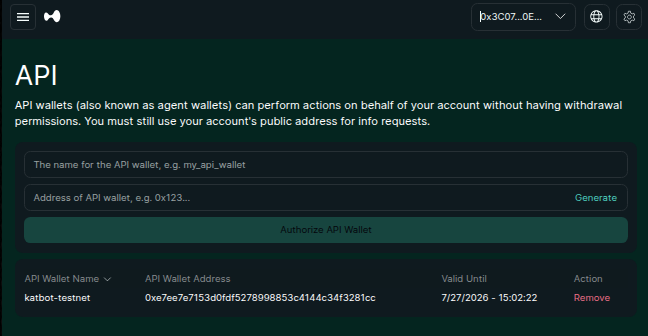
Once the "Agent Address" is added to your Hyperliquid account as an "API Wallet" with trading permissions, Katbot will be able to execute trades on your behalf based on the recommendations generated by the AI agent.
Debugging Hyperliquid Integration
If you are having issues with Hyperliquid integration, please follow these steps to troubleshoot:
- Ensure that you have created a Hyperliquid portfolio in Katbot and received an "Agent Private Key" and "Agent Address".
- Verify that you have added the "Agent Address" to your Hyperliquid account as an "API Wallet" with trading permissions.
- Check the API Wallet permissions in your Hyperliquid account to ensure that the key has not expired.
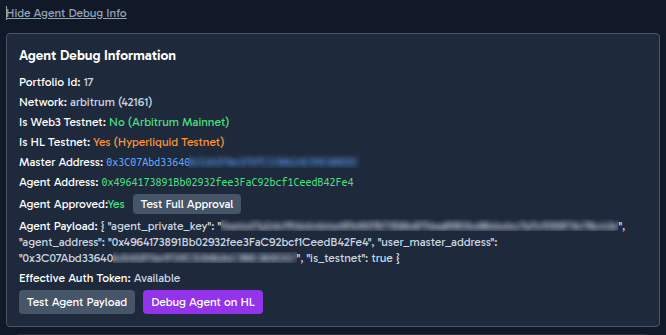
- Look at the Katbot "Show Agent Debug Info" (see below) to check the connectivity of the agent to the Hyperliquid API and check for any error messages.
- If you are still having issues, please contact our support team for assistance by going to the support channel on Discord.